Stop-motion setups work best when capture stability, onion skin controls, lighting, and edit handoff are solved together.
A good stop motion capture setup is not defined by the most expensive camera. It is defined by repeatability. Every frame depends on the previous one, so the best buying decisions are the ones that reduce accidental changes: camera shake, flickering exposure, drifting focus, moving lights, inconsistent file naming, and rushed retakes.
This stop motion capture setup buying guide is for animators who want to build a practical rig without overspending. It covers capture software, cameras, lighting, tripods, remote control, and the workflow pieces that keep a scene manageable. If you are still planning the whole production pipeline, pair this guide with the broader animation workflow guide before buying hardware.
Start with the capture method
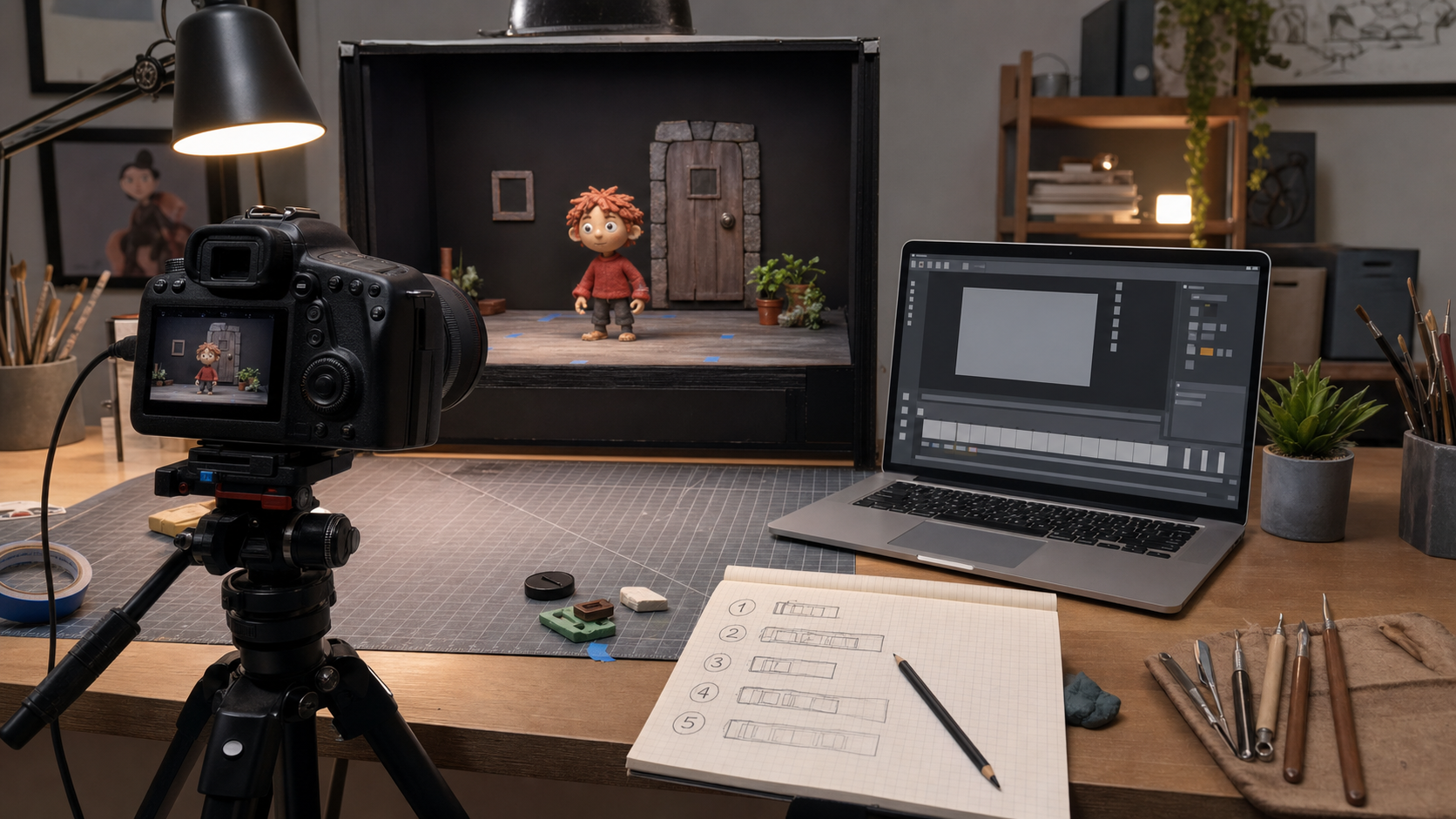
The first decision is whether you want to capture on a phone or tablet, a desktop computer connected to a camera, or an open-source desktop setup.
A phone or tablet setup is the easiest way to start. It keeps the capture device, preview screen, and software in one place. That makes it useful for classrooms, social shorts, toy animation, and quick experiments. Stop Motion Studio, from Cateater, is positioned around this kind of accessible workflow, with support across iPhone, iPad, macOS, Android, Windows, Chromebook, and Amazon Fire devices. Its feature set includes frame-by-frame editing, onion skin, grids, masks, audio, titles, green screen tools, and DSLR support on compatible setups.
A desktop tethered setup is better when you need tighter control. Dedicated stop motion capture software such as Dragonframe is built around a production-style interface with camera support, frame review, animation tools, and options for lighting or motion-control workflows. That kind of system makes more sense when image quality, continuity, and repeatable capture matter more than speed.
An open-source option such as qStopMotion can be useful for budget-conscious users, Linux-oriented workflows, or educational environments that want a free desktop tool. It is not the same buying decision as a polished commercial capture suite, but it can fit projects where simple frame capture and open tooling matter more than a fully integrated studio pipeline.
Choose software before the camera
The most common buying mistake is purchasing a camera first and checking compatibility later. Stop motion is not just photography. You need to preview, capture, compare frames, adjust timing, and keep the camera from changing settings between shots.
Before choosing a camera, confirm these software requirements:
| Setup type | Best fit | What to verify before buying |
|---|---|---|
| Phone or tablet app | Beginners, classrooms, social clips, quick tests | Stable mount, manual exposure or focus options, export formats, project transfer |
| Stop Motion Studio-style app workflow | Cross-device creators who want guided tools | Device support, DSLR compatibility if needed, onion skin, audio, masking, export options |
| Dragonframe-style desktop workflow | Serious hobbyists, studios, product tests, controlled scenes | Supported camera model, live view behavior, operating system support, lighting or controller needs |
| Canon EOS Utility-assisted workflow | Canon camera owners needing tethering support | Camera model support, OS compatibility, whether it works alongside the chosen capture workflow |
| qStopMotion-style open-source workflow | Budget, Linux, education, simple capture | Camera input support, file handling, documentation, maintenance expectations |
Canon EOS Utility is worth knowing about if you are using a Canon camera. It is Canon's own utility line for supported EOS cameras and can help with camera connection and image transfer tasks. However, it should not be treated as a full stop motion planning tool by itself. For animation, you still need a workflow that supports frame comparison, timing review, and organized shot management.
If you are comparing capture apps against broader animation software, use the best animation software guide to separate stop motion capture needs from editing, compositing, and general animation tools.
Camera buying priorities
A camera for stop motion should be boring in the best possible way. It should stay fixed, respond predictably, and let you lock settings.
Prioritize these features:
Manual exposure matters because changing brightness between frames creates flicker. Manual focus matters because autofocus may hunt when a hand, puppet, or prop enters the frame. Manual white balance matters because color shifts are hard to repair across hundreds of stills. Live view matters because you need to inspect the scene without touching the camera. Reliable tethering matters because a loose or unsupported connection can interrupt a shot.
A modern mirrorless camera or DSLR can work well, but only if the software supports it. Do not assume brand support means model support. Check the capture software's camera list, operating system notes, and any live-view limitations before buying. If the project is small, a recent phone or tablet may be more practical than a camera body, lens, cable, tripod plate, and desktop capture license.
Lens choice is usually simpler than camera choice. For tabletop scenes, a normal or short telephoto focal length often helps reduce distortion. Macro capability can help with miniatures, but it can also make depth of field very shallow. A lens that allows manual focus and does not shift unexpectedly is more valuable than a lens with flashy specs.
Stabilize the rig first
Tripods, arms, clamps, and mounts are not exciting purchases, but they protect every frame you capture. A weak mount can ruin an otherwise good setup.
For a tabletop set, start with a sturdy tripod, a fixed camera plate, and a way to mark the tripod feet. If you animate from above, use a copy stand, overhead arm, or rigid support that will not sag during the shot. For phone capture, avoid flexible mounts that bounce when tapped. Use a remote trigger, Bluetooth shutter, keyboard shortcut, or software capture button that does not require touching the camera body.
Your stage should be just as stable as your camera. Tape down the set base, mark prop positions when useful, and keep cables away from the animation area. If the camera, light stand, or set shifts, the software cannot solve the continuity problem for you.
Buy lighting for consistency, not drama
Stop motion lighting needs to be consistent over time. That is more important than cinematic complexity. Daylight looks good until a cloud moves, the sun angle changes, or the shot takes longer than expected.
A practical starter kit is two continuous LED lights, simple diffusion, and enough stands or clamps to lock them in place. Manfrotto's lighting category is a useful reference point for the kinds of photographic supports, LED lights, and modifiers that appear in camera-oriented setups. You do not need to buy every accessory at once, but you should think in terms of stable placement, diffusion, and repeatable control.
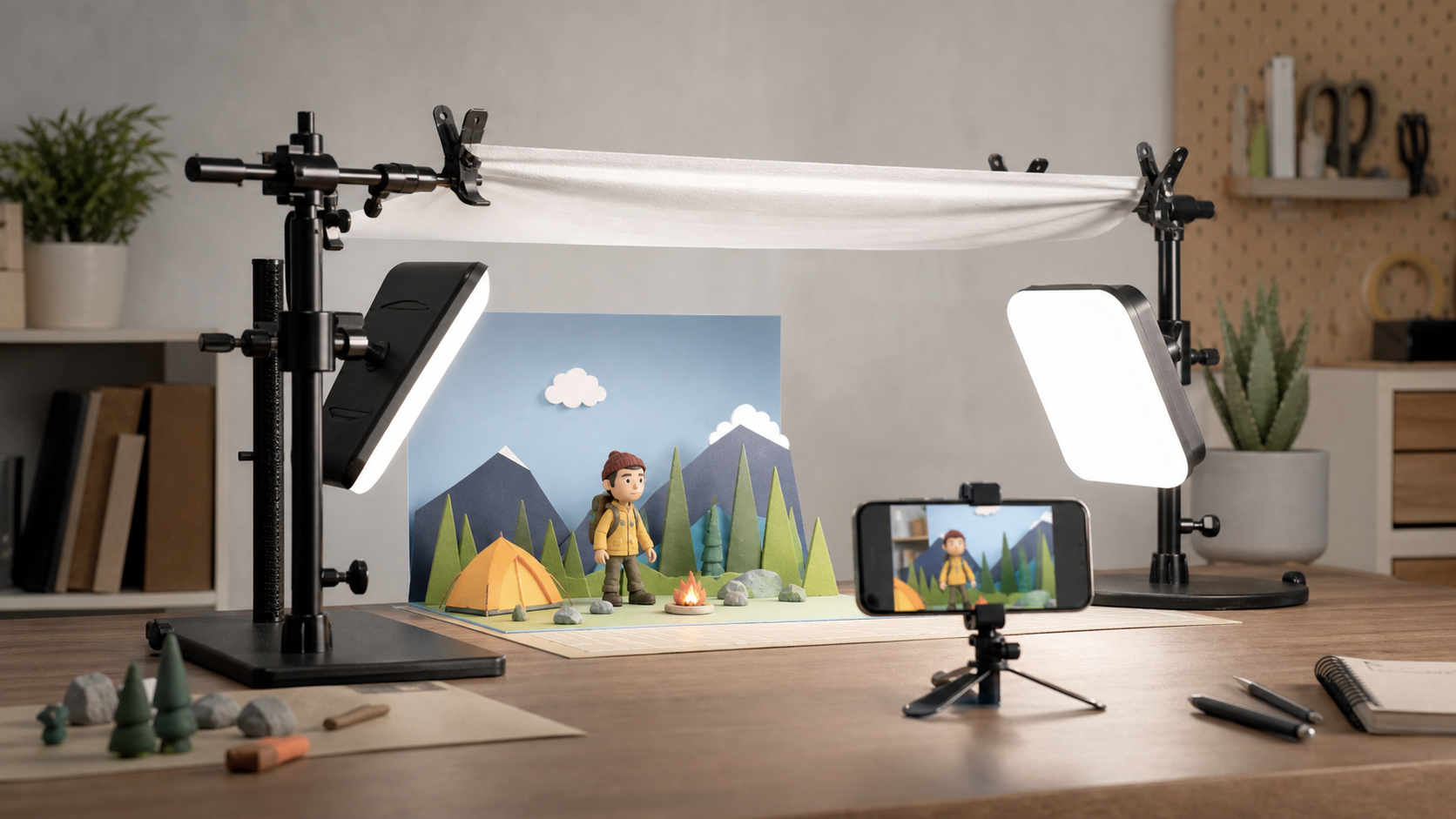
Avoid lights that flicker on camera, dim unpredictably, or change color temperature between settings. If possible, test a short sequence before committing to a full scene. Capture 30 to 60 frames without moving anything, then play them back. If the image pulses, solve that before animating.
Match the setup to the project
A beginner making toy animation does not need the same setup as a small studio shooting product-quality puppet scenes. The right purchase depends on the cost of reshoots.
For a first personal project, buy only what removes friction: a stable mount, a basic light setup, and software that shows onion skin and lets you review timing. Stop Motion Studio-style workflows can be a strong fit here because they combine capture and simple editing in a friendly interface.
For classroom use, durability and repeatability matter more than advanced controls. Tablets, fixed stands, and clear export steps may beat a more complex DSLR station. Built-in tutorials, simple project management, and privacy expectations should also factor into the decision.
For serious short films, commercial work, or portfolio scenes, dedicated capture software becomes easier to justify. Dragonframe is widely associated with professional stop motion production because it focuses on capture, animation review, and production control rather than only casual frame capture. In that environment, the software purchase is part of a larger system that may include a supported camera, power adapter, lighting control, shot notes, backups, and post-production.
For open-source or low-cost desktop experimentation, qStopMotion can be a reasonable starting point. The tradeoff is that you may need more patience with hardware setup, documentation, and workflow limitations.
Plan the scene before buying extras
More gear will not fix unclear action. Before spending on motion control, specialty lights, or complex rigs, make a storyboard and shot list. A clear plan will tell you whether you need an overhead mount, a macro lens, a larger stage, or simply better timing.
If you are building a shot from panels, compare options in the storyboard tools guide. If you are deciding whether a scene should be stop motion or drawn animation, the 2D animation guide can help clarify the tradeoffs.
A basic pre-capture checklist should include the frame rate, output aspect ratio, camera position, lighting placement, focus point, exposure settings, file destination, and backup plan. Stop motion rewards small preparations because every second of finished footage may represent many individual frames.
Recommended buying order
Buy in this order if you are starting from scratch:
- Capture software that fits your device and camera plan.
- A stable camera or phone mount.
- Two consistent continuous lights with stands or clamps.
- Diffusion, flags, tape, and cable management.
- A camera upgrade only if the current image quality or control is limiting the project.
- Extra tools such as controllers, overhead rigs, specialty lenses, or lighting control after the workflow proves itself.
This order keeps the early budget focused on reliability. A better lens cannot compensate for unstable lights. A high-end camera cannot compensate for unsupported tethering. A polished app cannot compensate for a tripod that moves every time the animator captures a frame.
Editorial note
Gwanimation articles are written to help readers choose tools and workflows with practical constraints in mind. For more context about how recommendations are handled, see the editorial policy. For site background, visit about Gwanimation.
Source notes
This guide uses official product and support pages as reference points: Dragonframe for dedicated stop motion capture software, Stop Motion Studio for app-based capture workflows, Canon EOS Utility for Canon tethering support context, Manfrotto Lighting for lighting category context, and qStopMotion for open-source stop motion capture context. Product capabilities, compatibility, and operating system support can change, so confirm current details before purchasing.
FAQ
What is the best first stop motion capture setup?
For most beginners, the best first setup is a phone or tablet on a stable mount, a stop motion app with onion skin, two continuous lights, and a small tabletop stage. This teaches timing, spacing, and continuity without requiring a full camera rig.
Do I need a DSLR or mirrorless camera for stop motion?
No. A DSLR or mirrorless camera can improve image quality and control, but it also adds compatibility checks, tethering, power, cables, and lens decisions. Start with the simplest setup that lets you lock focus, exposure, and camera position.
Is Dragonframe necessary for beginners?
Dragonframe is not necessary for every beginner. It is better suited to serious hobbyists, production-minded animators, and controlled shoots that benefit from dedicated capture tools. Beginners can learn the fundamentals with simpler app-based workflows first.
How important is lighting for stop motion?
Lighting is critical because inconsistent light creates flicker between frames. Stable continuous lights, fixed placement, and manual camera settings are more important than dramatic lighting effects at the start.
Can open-source software work for stop motion?
Yes, open-source software such as qStopMotion can work for simple capture or learning environments. The main tradeoff is that setup, hardware support, and workflow polish may require more checking than commercial apps.